Wednesday, October 15, 2008

Alien Bees and Speedlights Comparison

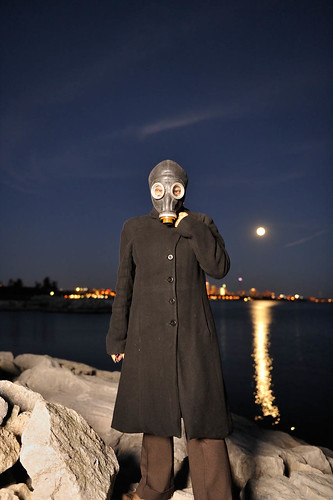
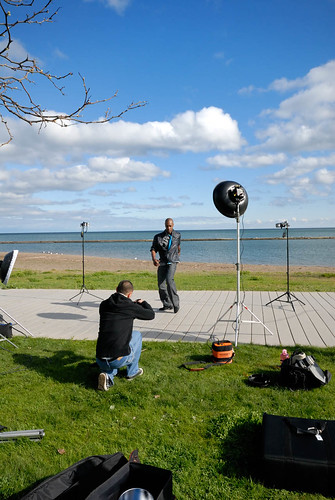
Yesterday (Tuesday, October 14th 2008) fellow strobist Shelley and I embarked on a little test of lighting and props on the lake shore of Toronto. We started out using an AB1600 on a medium octabox and tried to balance the ambient light but the problem was that the light was fading rapidly and the AB became to powerful (even at its lowest setting) so the highlights were constantly being blown out. The obvious option was to stand further away from the light, but as you can see in this example Shelley was not standing in the best of terrains and it just got plain dangerous as you tried to step further away from the octabox:

Dr. Doom is coming for your - Part 2
In this sample, the WB was set to Flash and the ISO was at 2000 in order to capture the ambient light without a tripod. The picture control was set to landscape (I had left it that way from a previous outing the day before)


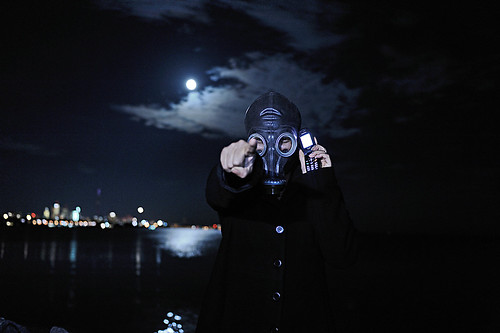
As you can see, in the sample above, we were not quite capturing that dark gloomy mood we were looking for, so we decided to switch over to SB-800s triggered via Nikon CLS. To get the bluish color on the ambient, we dropped the WB to around 2600K (temp) and put on a daylight balance gel on the off-camera SB-800. The power output on the off-camera flash was 1/64th. Note: bring a flash light with you to find a focus point, otherwise use a cellphone as shown in this pic.
Dr. Doom looking to hook up this Halloween
Looking back on the shot, we should've set up a second flash to light the upper body but I still like the way this one came out.

Friday, October 10, 2008

TGIF - Strobing Thursday

I was a little sick of spending the evenings at home watching TV so I decided to go out last night for a street shooting session, which later evolved into a Strobist session. I called fellow strobist Shelley (http://www.flickr.com/photos/shelleyannmc/)to see if she wanted to join me in my excursion. The night was kind of a bust because it was windy and the umbrellas kept getting knocked over, to the point we gave up on them and tried to go with bare flashes. However, the bigger problem was the lack of planning on my part so we were just aimlessly scouting locations and trying to shoot at the same time. Lesson learned for the day: SCOUT YOUR LOCATION FIRST!

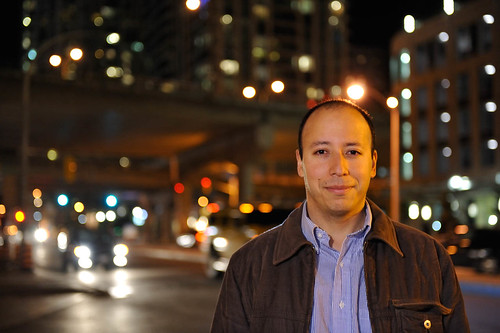
Testing Nikon's CLS  Part 2 - Taken by Shelley
This shot was taken by Shelley and it was probably one of the best ones of the night. The technical setup is as follows: ISO pumped up to 2000 and WB set to 3700K while using a CTO gel on the SB-800 positioned at camera left and set to 1/128 power with the diffuser cap on. We tried using umbrellas but the wind kept knocking them down.

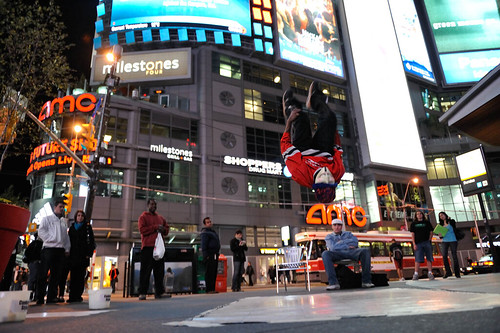
I was so frustrated with the lack of results for the night that I proceeded to walk back to Dundas Square (Toronto, Canada) and shoot a crew of break dancers that I had seen earlier. No strobes this time, I just relied on the amazing high ISO capabilities of the Nikon D3. All shots were taken at ISO 3200

V for Vreak Dancing 2009 - Part 16

Have a happy thanksgiving! (Canada)

Wednesday, October 8, 2008

No Pictures for you today!

Tomorrow

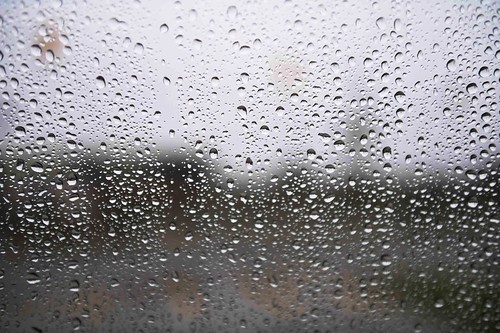
Well, I had my mind set on a photowalk around the downtown core today and figured the rain wouldn't be that bad. Boy, was I wrong! By 5pm it was very clear that I was going to have to cancel my plans and wait until tomorrow. I took this shot before leaving the parking lot of my office. About an hour and half later I made it home. Tomorrow will be another day and hopefully better pictures will accompany my post.

Monday, October 6, 2008

Nuit Blanche 2008

I had never been to this event before so I thought it would be a great opportunity to take a lot of pictures. I even envisioned running short on memory cards but by the end of the night (or morning) I had only taken less than a hundred shots. I think it's time to get back to Strobism and leave street shooting to those that are actually good at at it. I'm looking forward to October 18th, when I'll get together with fellow strobist Neil () for a photo shoot with a model. I think it's time to start pushing the envelope of creativity and lighting possibilities and I hope it will show in my next post. Having said that, here are a few shots from Saturday night at Scotiabank's Nuit Blanche 2008:

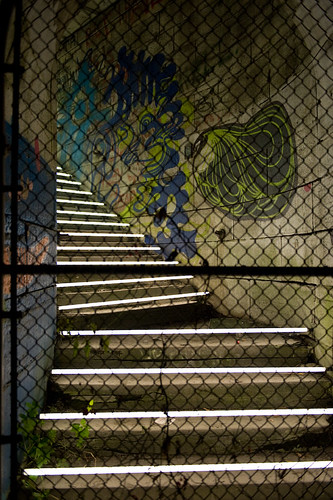
1. Stairs to Heaven
_DSC3909

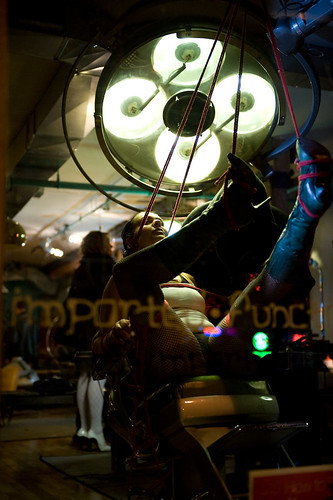
2. Anatomy of Kink
_DSC3907

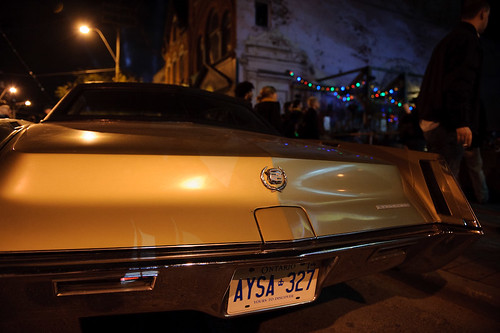
3. The Classic C
_DSC3903

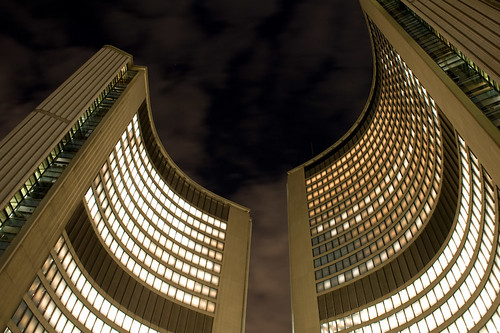
4. City Hall
_DSC3756

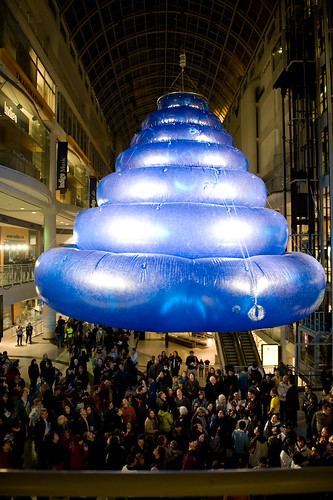
5. Ice Cream Blues
_DSC3786

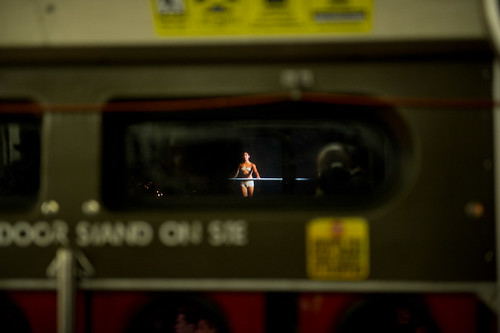
6. Dancer on a streetcar window
Dancer on Streetcar window

Monday, May 19, 2008

Lighting on Location

Have you ever visited the Stobist page on Flickr and wondered in amazement how those really cool shots were engineered? Well, here's a quick post on the setup and the resulting image:

1. The Setup
The Setup

2. The Result
Travis Knights3

This setup (check out the notes on the Flickr image) is not for the starving student but it sure beats the more expensive stuff (Profoto, etc.) in price. Have a great week!

Tuesday, March 11, 2008

The Creative Process

If you ever found yourself stuck in a creative rot then Flickr is the place to reconnect with your creative self. For a site that started as a medium for uploading family pics, etc., the evolution has been rather dramatic. Nowadays, if you spend the time to look for talent and inspiration you will find it and you will definitely be surprised by the quality of it, so before this post gets too long here are some examples of the people whose Photostreams are just jaw dropping amazing:

PROVERBS 31:10
http://www.flickr.com/photos/proverbs31/

Chris Kovacs
http://www.flickr.com/photos/chriskovacs/

Zuan
http://www.flickr.com/photos/zuan/

Peter Bowers
http://www.flickr.com/photos/mr_fabulous/

Rodolphe Simeone
http://www.flickr.com/photos/all_the_names_are_already_taken_pfff/

Tiny Dancer
http://www.flickr.com/photos/disneyprincess/

Simon Pais-Thomas
http://www.flickr.com/photos/simonpais/

These are just a few of the many talented photographers you can find on Flickr. Visit their photostreams when you feel low on inspiration.

Monday, February 4, 2008

Photoshop Retouching for Fashion Shoots

Well, most pros actually leave this part of the job to a photo retoucher but if you are on a budget, actually have the time to do it and have some basic knowledge of Photoshop here are a few steps that you can follow to achieve that "magazine look":

1. Do not go crazy with the retouching, subtle changes work best:
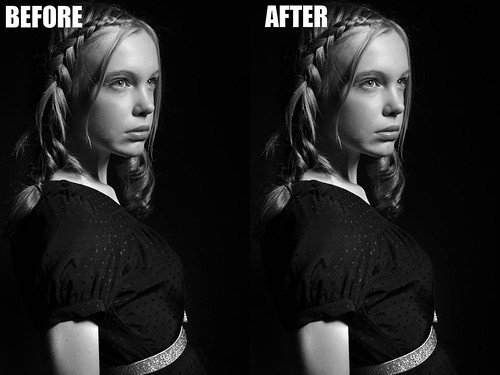
Photo Retouching with PS CS3

2. Start by zooming in on the problem areas:
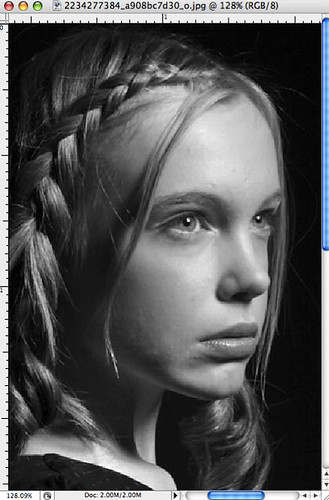
Removing Spots and Blemishes Zoomed In

3. Copy the background layer by hitting Ctr/Cmd+J then create a new layer and select the Spot Healing Tool (J):

Removing Spots and Blemishes Spot Healing

4. Make sure that the box "Sample All Layers" is selected in the File menu:

Removing Spots and Blemishes File Menu

5. Select the problem spots and make sure that the circle (cursor) is bigger than the problem area. You can increase or decrease the size of the circle by hitting the left or right bracket key. Click on the problem area and drag the cursor until you see a black spot form over the spot and then let go.

6. In this particular example, the image could use a bit more highlights. Select Curves from the Adjustment Layers (circle half black and half white) menu at the bottom of the layers palette and adjust the entire RGB curve as follows:
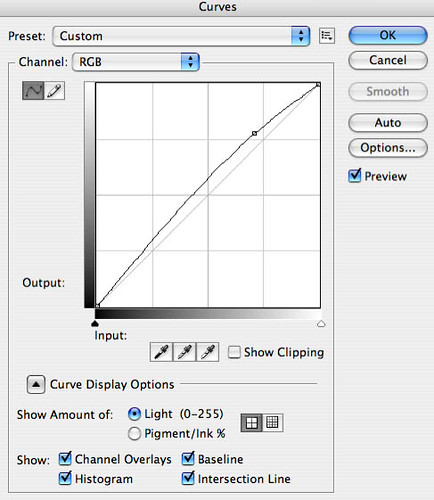
Removing Spots and Blemishes Curves

7. We did remove spots and blemishes from the model's skin but further smoothing might be needed and this can be accomplished by using a localized blur. Create a new blank layer and then while clicking on the Ctrl/Cmd key select Merge Visible from the Layers drop down menu. This will bring up a new image copy with all the properties of the layers below. Select Filter>Blur>Gaussian Blur from the Filters menu:
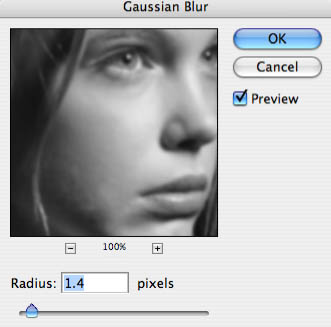
Removing Spots and Blemishes Gaussian Blur

This process will add a global blur to the whole image but you want to apply it locally so add a Mask Layer (third item from the left at the bottom of the layers palette)and invert it (Ctr/Cmd+I). Now select the Brush Tool (set foreground color to White) and adjust the settings of the Brush Tool as follows:

Removing Spots and Blemishes Blur Brush Properties

8. The final step (for this image) includes a slight sharpening of the eyes and lips. Once again, create a new layer and then while pressing the Ctrl/Cmd key, select Merge Visible from the Layers palette drop down menu. Select the Pen Tool (P) and start carefully selecting the eyes and the lips. If you have no experience with the Pen tool then use the Polygonal lasso tool, which is not as accurate when drawing curved shapes:
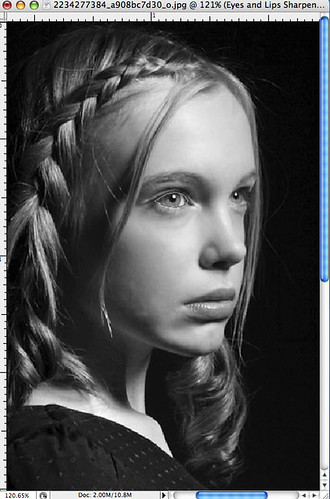
Sharpening  Eye Selection

9. Once the selections have been made go to the Paths tab in the layers palette and select the Work Path layer. Once selected, click on "Load Path As Selection" (third item from the left at the bottom of the Layers palette. Then hit Shift+Ctrl/Cmd+I to invert the selection and go to Filters>Sharpen>Unsharp Mask. The amount of sharpening depends on the resolution of the image:
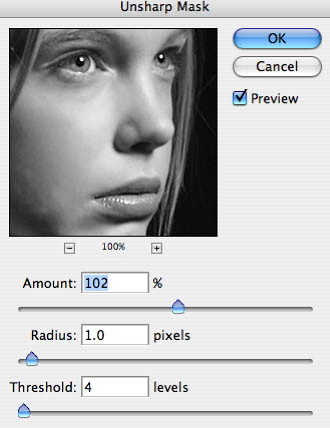
Sharpening  Unsharp Mask

10. Your final layer structure should look something like the following. Don't forget to rename your layers so you know where to go to back to in case changes need to be made:
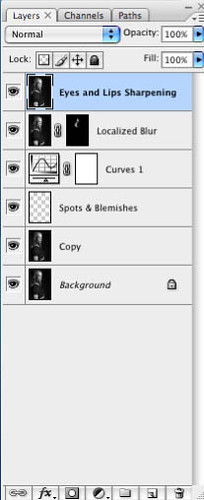
Sharpening  New Layer