Monday, May 19, 2008

Lighting on Location

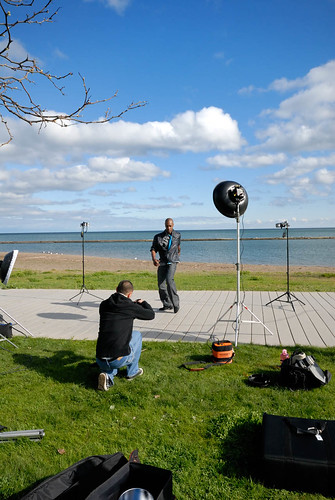
Have you ever visited the Stobist page on Flickr and wondered in amazement how those really cool shots were engineered? Well, here's a quick post on the setup and the resulting image:

1. The Setup
The Setup

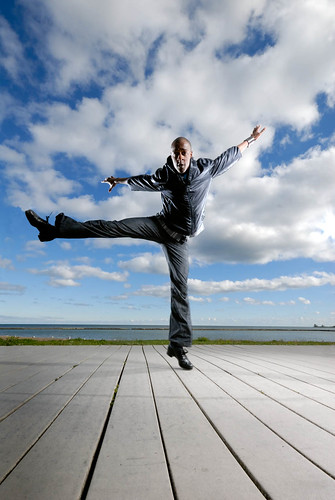
2. The Result
Travis Knights3

This setup (check out the notes on the Flickr image) is not for the starving student but it sure beats the more expensive stuff (Profoto, etc.) in price. Have a great week!

Tuesday, March 11, 2008

The Creative Process

If you ever found yourself stuck in a creative rot then Flickr is the place to reconnect with your creative self. For a site that started as a medium for uploading family pics, etc., the evolution has been rather dramatic. Nowadays, if you spend the time to look for talent and inspiration you will find it and you will definitely be surprised by the quality of it, so before this post gets too long here are some examples of the people whose Photostreams are just jaw dropping amazing:

PROVERBS 31:10
http://www.flickr.com/photos/proverbs31/

Chris Kovacs
http://www.flickr.com/photos/chriskovacs/

Zuan
http://www.flickr.com/photos/zuan/

Peter Bowers
http://www.flickr.com/photos/mr_fabulous/

Rodolphe Simeone
http://www.flickr.com/photos/all_the_names_are_already_taken_pfff/

Tiny Dancer
http://www.flickr.com/photos/disneyprincess/

Simon Pais-Thomas
http://www.flickr.com/photos/simonpais/

These are just a few of the many talented photographers you can find on Flickr. Visit their photostreams when you feel low on inspiration.

Monday, February 4, 2008

Photoshop Retouching for Fashion Shoots

Well, most pros actually leave this part of the job to a photo retoucher but if you are on a budget, actually have the time to do it and have some basic knowledge of Photoshop here are a few steps that you can follow to achieve that "magazine look":

1. Do not go crazy with the retouching, subtle changes work best:
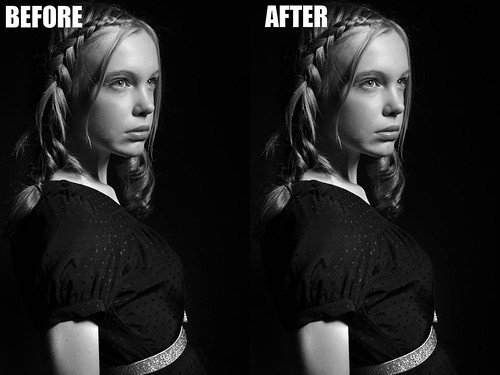
Photo Retouching with PS CS3

2. Start by zooming in on the problem areas:
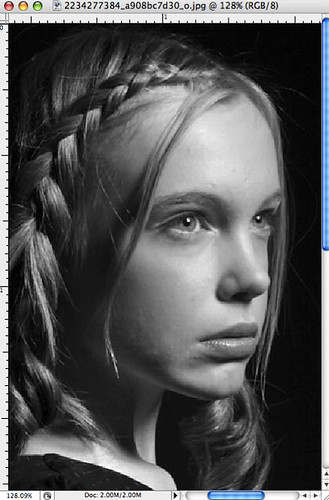
Removing Spots and Blemishes Zoomed In

3. Copy the background layer by hitting Ctr/Cmd+J then create a new layer and select the Spot Healing Tool (J):

Removing Spots and Blemishes Spot Healing

4. Make sure that the box "Sample All Layers" is selected in the File menu:

Removing Spots and Blemishes File Menu

5. Select the problem spots and make sure that the circle (cursor) is bigger than the problem area. You can increase or decrease the size of the circle by hitting the left or right bracket key. Click on the problem area and drag the cursor until you see a black spot form over the spot and then let go.

6. In this particular example, the image could use a bit more highlights. Select Curves from the Adjustment Layers (circle half black and half white) menu at the bottom of the layers palette and adjust the entire RGB curve as follows:
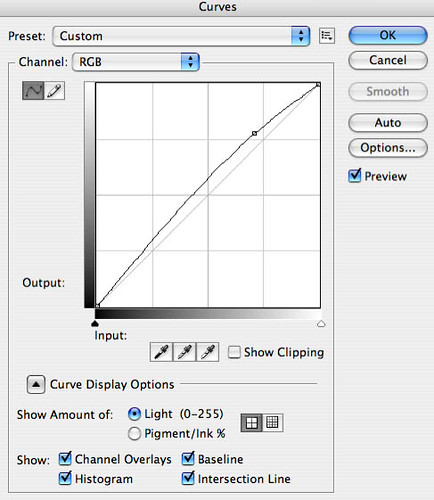
Removing Spots and Blemishes Curves

7. We did remove spots and blemishes from the model's skin but further smoothing might be needed and this can be accomplished by using a localized blur. Create a new blank layer and then while clicking on the Ctrl/Cmd key select Merge Visible from the Layers drop down menu. This will bring up a new image copy with all the properties of the layers below. Select Filter>Blur>Gaussian Blur from the Filters menu:
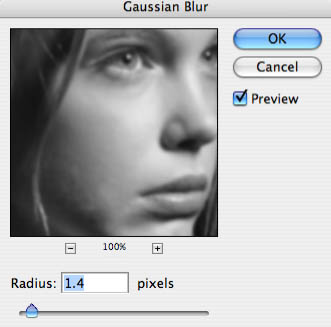
Removing Spots and Blemishes Gaussian Blur

This process will add a global blur to the whole image but you want to apply it locally so add a Mask Layer (third item from the left at the bottom of the layers palette)and invert it (Ctr/Cmd+I). Now select the Brush Tool (set foreground color to White) and adjust the settings of the Brush Tool as follows:

Removing Spots and Blemishes Blur Brush Properties

8. The final step (for this image) includes a slight sharpening of the eyes and lips. Once again, create a new layer and then while pressing the Ctrl/Cmd key, select Merge Visible from the Layers palette drop down menu. Select the Pen Tool (P) and start carefully selecting the eyes and the lips. If you have no experience with the Pen tool then use the Polygonal lasso tool, which is not as accurate when drawing curved shapes:
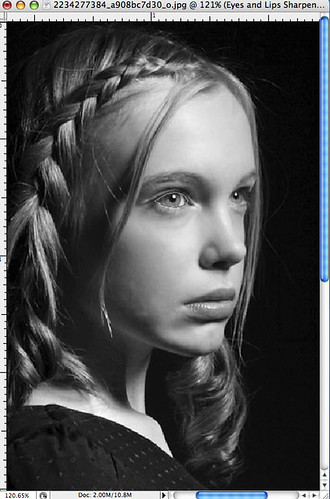
Sharpening  Eye Selection

9. Once the selections have been made go to the Paths tab in the layers palette and select the Work Path layer. Once selected, click on "Load Path As Selection" (third item from the left at the bottom of the Layers palette. Then hit Shift+Ctrl/Cmd+I to invert the selection and go to Filters>Sharpen>Unsharp Mask. The amount of sharpening depends on the resolution of the image:
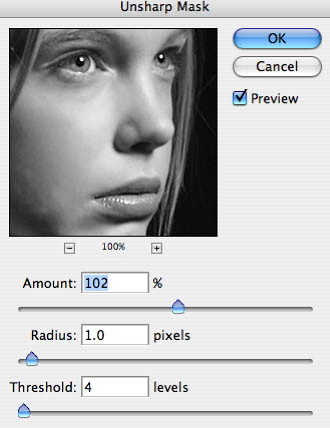
Sharpening  Unsharp Mask

10. Your final layer structure should look something like the following. Don't forget to rename your layers so you know where to go to back to in case changes need to be made:
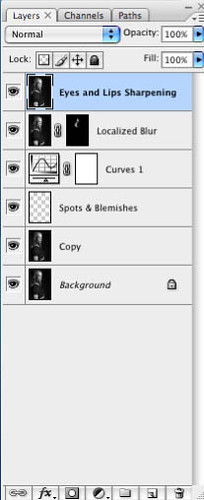
Sharpening  New Layer

Monday, December 17, 2007

Candids and Street Photography

I must admit it, I still take a candid every now and then but they are increasingly scarce in my Flickr Photostream. I think there's a certain invasion of privacy involved in it and a detestable "paparazzi" feel to it. In the words of Michael Grecco (author of Lighting and the Dramatic Portrait): "... I do not use the shoot-people-from-a-distance-with-a-long-lens approach. This does not work and is strictly for amateurs who are afraid to engage their subjects". A lot of people would beg to differ with Michael's view but in my opinion he's right on many levels. Photographing a stranger does not convey any emotions other than the interpretation of the person behind the lens. While some of those spontaneous captures might be amusing and compelling at times, they do not tell a story. Having said that, sometimes the image calls for the right mood and the right person at the right time:

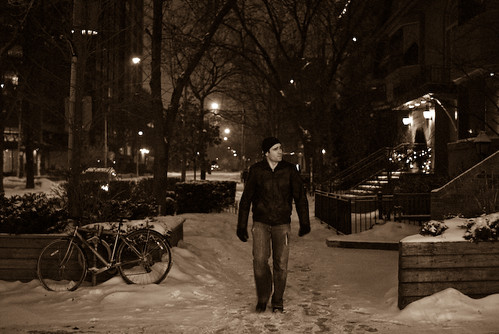
Taken on Saturday, December 15th, 2007 after leaving the Bedford Academy. It was just a few hours before the city of Toronto got hit by a snow storm, which dumped 25 cms of snow on the ground. It was a cold night and maybe the prospect of spending all day Sunday at home prompted this lone soul to roam the streets in search of a pub that would provide some comfort. Again, that's my interpretation, maybe this guy didn't want to go out in the first place but he got talked into it by his friends and he was just thinking: "damn it, I should have stayed at home".

Looking Through The Cold

Tuesday, December 11, 2007

Toronto and Ontario Landscape Images Available for sale as Rights-Managed and Royalty-Free stock images

You can view the whole gallery here

I've always been fascinated by landscape photography but always found a good excuse not to take those sort of captures myself: "Oh, I live in the city, there aren't many places where I can take interesting landscape shots, blah, blah"

I recently decided to stop looking for excuses and start looking for good locations within the city to setup something somewhat similar to what I had seen in magazines. The few things that I've learned so far and which I think are pretty much standard for this type of photography are as follows:

1. Scout your location first. I live in Toronto, Canada and it can get pretty cold in the winter so if you are crazy enough like me and decide to go outdoors shooting on a cold day, you better have some sort of concept in your head of the shot you are looking for, otherwise the temperatures won't allow you too much time to walk around while trying to figure out what you want to shoot.

2. Get up early or wait for a sunset. Dramatic skies are more evident and have better colour at this time of the day.

Here are a couple of samples all of them taken early in the morning: